Installing Mods on a Hytale Server
Install plugins and asset packs on a Hytale server through the mods folder on Skyes Game Panel, check that mods are active, and fix a server that will not start.
hytaleWritten by Aneryan5 min read0 viewsUpdated

Hytale mods are installed on the server. You upload the mod files to the server's mods folder, and players who join use that content without installing anything themselves.
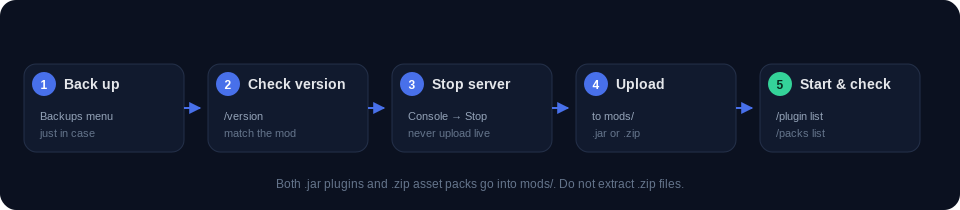
In short: back up → check the mod matches the server version → stop the server → upload files to
mods/→ start the server → check with/plugin listor/packs list.
Types of Hytale mods
| Type | File | What it does | Server folder |
|---|---|---|---|
| Plugin | .jar | Adds or changes server behavior: new commands, economy systems, land protection, and so on | mods/ |
| Asset pack | .zip (or a folder containing manifest.json) | Adds game content: blocks, items, models, textures, sounds | mods/ |
A common source for mods is CurseForge. The in-game Mod Browser installs mods into the game on your own computer, not on the server. For a server, download the file and upload it through the panel.
Before you start
- Back up the server from the panel's Backups menu. A broken or incompatible mod can stop a world from loading.
- Check the version. Hytale is still updated often, and plugins are built for a specific server version. Run
/versionin the Console to see your server version, then make sure the mod page lists the same or a newer version. - Read the mod page: does it need other mods (dependencies), and does it have extra settings?
Step 1 — Stop the server
Open Console, click Stop, and wait until the server has fully stopped. Do not upload mods or edit settings while the server is running, because changes can be overwritten when it shuts down.
Step 2 — Upload the mod files
- Open the Files menu.
- Go into the
modsfolder. If it does not exist, create a folder namedmodsin the server root. - Click Upload and choose the mod's
.jaror.zipfile. - Do not extract asset pack
.zipfiles. Keep them as.zip. - If the mod needs other mods, upload those dependency files to the same folder.
The result looks roughly like this:
/
├── mods/
│   ├── PluginName-1.2.0.jar
│   └── AssetPackName.zip
├── universe/
└── config.json
Uploading many files at once is easier over SFTP. See Accessing SFTP on Windows, Linux, and macOS.
Step 3 — Start the server and check
- Go back to Console, click Start, and watch the log while the server starts. Red lines or lines containing
ERRORusually name the mod causing trouble. - Once the server is up, check which mods are active:
| Command | Shows |
|---|---|
/plugin list | Loaded plugins (.jar) |
/packs list | Loaded asset packs |
- Join the server and try the mod's features.
Configuring a mod
Many plugins create their own settings folder inside mods/ after the first server start, usually containing a config.json file.
- Stop the server.
- Open the plugin's settings folder in
mods/and editconfig.json. - Save and start the server.
Each mod's page explains its settings. When editing JSON, check it first with a JSON linter such as jsonlint.com so there are no stray commas or brackets.
Disabling or removing a mod
Hytale has no per-mod on/off switch. Instead:
- Stop the server.
- Move the mod file out of
mods/(for example into a newmods-disabled/folder), or delete it. - Start the server.
Be careful removing an asset pack whose blocks are already used in a world. Blocks and items from that pack can disappear or turn into broken blocks. Back up first.
Troubleshooting
| Problem | Common cause | Fix |
|---|---|---|
| The server will not start after installing a mod | The mod does not match the server version or is broken | Move the last mod out of mods/, restart, then find a matching mod version |
The mod is missing from /plugin list | Wrong folder, or not a .jar | Make sure the .jar sits directly in mods/, not in a subfolder |
| An asset pack does not load | The .zip was extracted, or its content is nested in an extra folder | Upload the original .zip again without extracting it |
Failed to load world! Missing plugin | The world needs a plugin that was removed | Reinstall that plugin, or restore a backup |
| A mod stops working after a Hytale update | The plugin is not updated for the new version yet | Wait for or download the latest mod version; disable the mod meanwhile |
| Mod settings revert | The file was edited while the server was running | Stop the server first, then edit |
Safe practices
- Install mods one at a time, then test. If the server fails to start, you know the cause right away.
- Download mods only from trusted sources. A
.jarplugin runs code on your server. - Back up before installing, updating, or removing mods.
- Check mod pages whenever Hytale ships a major update.
Checklist
- The server is backed up.
- The mod version matches
/version. - The server was stopped before uploading.
-
.jarand.zipfiles sit directly inmods/, not extracted. - Mod dependencies are uploaded too.
- The server starts without errors in the Console.
- The mod shows in
/plugin listor/packs list.
If the server still will not start, contact Skyes Hosting support and include the server name, the mod name, and the error lines from the Console.
Was this article helpful?