Project Zomboid Save Location and Moving a World to a Server
Where Project Zomboid save files live on a Skyes Game Panel server and on your computer, what each file holds, how to back up, and how to move a single-player world to a server.
project-zomboidWritten by Aneryan4 min read0 viewsUpdated
Project Zomboid stores the world, player accounts, and server settings in several different folders. Knowing where they are helps you back up, move a world, or start the server over.
In short: on the server, everything is in the
.cache/folder: the world inSaves/Multiplayer/<server-name>/, settings inServer/, and player accounts indb/.
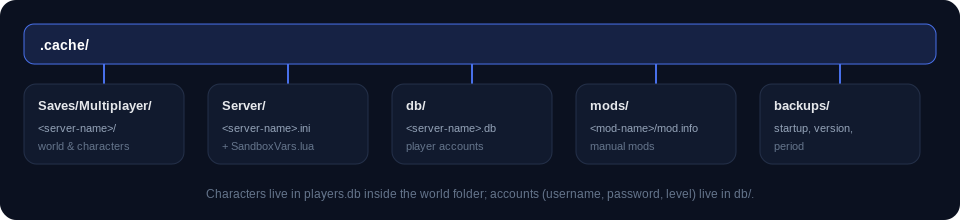
Location on the server (Skyes Game Panel)
Open the panel Files menu. The .cache folder starts with a dot; if you cannot see it, make sure the file list is not hiding hidden folders.
| Location | Contents |
|---|---|
.cache/Saves/Multiplayer/<server-name>/ | The server world: map, characters, vehicles |
.cache/Server/<server-name>.ini | Server settings (name, slots, PvP, mods) |
.cache/Server/<server-name>_SandboxVars.lua | Gameplay rules (zombies, loot, time) |
.cache/Server/<server-name>_spawnregions.lua | Towns players can spawn in |
.cache/db/<server-name>.db | Player accounts: username, password, access level |
.cache/mods/ | Manual mods you uploaded yourself |
.cache/backups/ | Automatic backups made by the server |
<server-name> is the server name used when the server starts, for example servertest. Each settings file is explained in Project Zomboid Server Configuration Guide.
Inside the world folder
Saves/Multiplayer/<server-name>/ holds thousands of map chunk files, plus a few important ones:
| File | Contents |
|---|---|
players.db | Player characters: inventory, skills, position |
vehicles.db | Vehicles in the world |
map_t.bin | In-game world time |
map_sand.bin | This world's copy of the sandbox settings |
So accounts (username and password) live in db/<server-name>.db, while characters live in players.db inside the world folder.
Location on your computer (single player and self-hosted)
| System | Save location |
|---|---|
| Windows | C:\Users\<your-name>\Zomboid\Saves\ |
| Linux / macOS | ~/Zomboid/Saves/ |
Inside, single-player worlds sit in a folder per game mode, for example Saves\Sandbox\<world-name>\. Worlds hosted from the in-game Host menu are in Saves\Multiplayer\<server-name>\, with settings in Zomboid\Server\.
Backups
- Panel backup: open the Backups menu, click Create Backup, then download a copy to keep on your computer.
- Server auto-backups: Project Zomboid stores backups in
.cache/backups/when the server starts and when the game version changes. The.inisettings areBackupsOnStart,BackupsOnVersionChange,BackupsPeriod(interval in minutes,0to turn off), andBackupsCount(how many to keep). - Save first: run
/savein chat (orsavein the Console) before backing up so the latest progress is included.
Moving a single-player world to the server
- Match the version. The server must run the same or a newer Project Zomboid build than your world.
- Stop the server and create a backup in the Backups menu.
- On your computer, open the single-player world folder, for example
C:\Users\<your-name>\Zomboid\Saves\Sandbox\<world-name>\. - Upload the contents of that folder (not the folder itself) to
.cache/Saves/Multiplayer/<server-name>/on the server. There are many files, so use SFTP. See Accessing SFTP on Windows, Linux, and macOS. - Match the sandbox settings: adjust
<server-name>_SandboxVars.luato your world's settings. - If the world uses mods, fill
Mods=andWorkshopItems=in the.iniwith the same mods. See Installing Project Zomboid Mods. - Start the server and wait until the Console shows
SERVER STARTED.
Single-player characters do not transfer. A dedicated server only reads characters it created, so every player makes a new character. Buildings and the world itself remain.
Starting a new world
The safest way, without deleting anything: stop the server, rename .cache/Saves/Multiplayer/<server-name>/ to something like <server-name>-old, then start the server. The server creates a new world, and you can bring the old one back by renaming it again. Player accounts in db/ stay.
Troubleshooting
| Problem | Common cause | Fix |
|---|---|---|
The .cache folder is not visible | Hidden folders are not shown | Show hidden files in Files, or use SFTP |
| An uploaded world does not load | The folder was uploaded instead of its contents | Make sure files like map_t.bin sit directly in Multiplayer/<server-name>/ |
| The server creates a new world | The world folder name differs from the server name | Match the folder name to the server name |
| The world fails to load after upload | The server is older than the world, or mods are missing | Update the server and install the same mods |
| Old characters are gone | Single-player characters are not carried over | Create a new character on the server |
| Recent progress is lost | The server was killed before saving | Use /save or /quit before shutting down |
If the world still will not load, contact Skyes Hosting support and include the server name, the build version, and the log lines from the Console.
Was this article helpful?