Downloading Your Valheim World from the Server
Download a Valheim world from a Skyes Game Panel server to your computer, where the world files live, the new and old world formats, and how to download through Files, SFTP, or a backup.
valheimWritten by Aneryan4 min read0 viewsUpdated
Downloading your Valheim world from the server is useful for keeping a backup on your own computer, continuing in single player, or moving the world to another server.
In short: save the world with
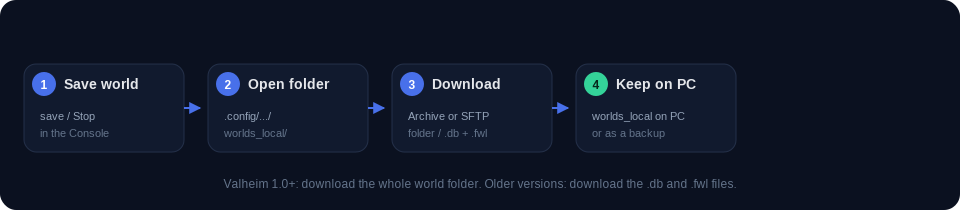
saveor stop the server → open Files →.config/unity3d/IronGate/Valheim/worlds_local/→ download the world files or folder.
Where the world lives on the server
Worlds are in this folder (not the server root):
.config/unity3d/IronGate/Valheim/worlds_local/
The .config folder starts with a dot. If you cannot see it in Files, make sure the file list shows hidden folders, or use SFTP.
World formats
Valheim uses two formats, depending on the version:
| Version | World layout |
|---|---|
| Valheim 1.0 and later | One folder per world, for example worlds_local/OurWorld/, holding many files (.fwl2, .db2, .chunk, and others) |
| Before 1.0 | Two files per world: OurWorld.db (the world itself) and OurWorld.fwl (world info and seed) |
For the folder format, download the whole folder. For the old format, download both the .db and .fwl files. The world will not open if a file is missing.
Valheim 1.0 still loads old-format worlds and converts them to the new format on first open. Keep a copy of the old files just in case.
Step 1 — Save the world
Pick one:
- Stop the server from the Console. This is the safest option, because the world is fully saved on shutdown.
- Or type
savein the Console if the server must stay up, then wait a few seconds for the save to finish.
Step 2 — Download the world
Through Files (small worlds)
- Open Files and go to
.config/unity3d/IronGate/Valheim/worlds_local/. - For a world folder: tick the folder, choose Archive to create a
.tar.gz, then download that archive. Delete the archive from the server afterwards so it does not take up space. - For the old format: download the
.dband.fwlfiles one by one.
Through SFTP (large worlds)
Connect an SFTP app such as FileZilla or WinSCP, open the worlds_local folder, and drag the world folder or files to your computer. See Accessing SFTP on Windows, Linux, and macOS.
Through the Backups menu
Open the Backups menu, create a new backup, then choose Download. It contains the whole server, including the world.
Using the world on your computer
To play that world in single player:
-
Extract the archive if you downloaded a
.tar.gz. -
Copy the world folder (or the
.db+.fwlfiles) to the world folder on your computer:System Location Windows %USERPROFILE%\AppData\LocalLow\IronGate\Valheim\worlds_local\Linux ~/.config/unity3d/IronGate/Valheim/worlds_local/ -
Open Valheim. The world appears in the Start Game list.
Characters are not downloaded, because each player's character is stored on their own computer, not on the server.
Valheim's automatic backups
The Valheim server also makes its own backups. They use these parameters (when available on the Startup tab):
| Parameter | Default | What it does |
|---|---|---|
-saveinterval | 1800 | Seconds between autosaves |
-backups | 4 | Number of automatic backups kept |
-backupshort | 7200 | Seconds until the first backup |
-backuplong | 43200 | Seconds between later backups |
Troubleshooting
| Problem | Common cause | Fix |
|---|---|---|
The .config folder is not visible | Hidden folders are not shown | Show hidden files, or use SFTP |
| The world does not appear on your computer | Files are in the wrong folder, or still archived | Extract them and place them in worlds_local |
| The world will not open | A file is missing | Download the whole folder, or both .db and .fwl |
| Recent progress is missing | The world was downloaded before the server saved | Run save or stop the server, then download again |
| The archive is too big to download in the browser | The world is very large | Use SFTP |
If the world cannot be downloaded, contact Skyes Hosting support and include the server name and the world name.
Was this article helpful?